
Captive nuts in 3D prints: pockets, slots, and pausing
How to design a captive nut into a 3D print: pocket sizes for M2–M8, side slot vs bottom pocket strength, and pausing mid-print to bury a nut for good.
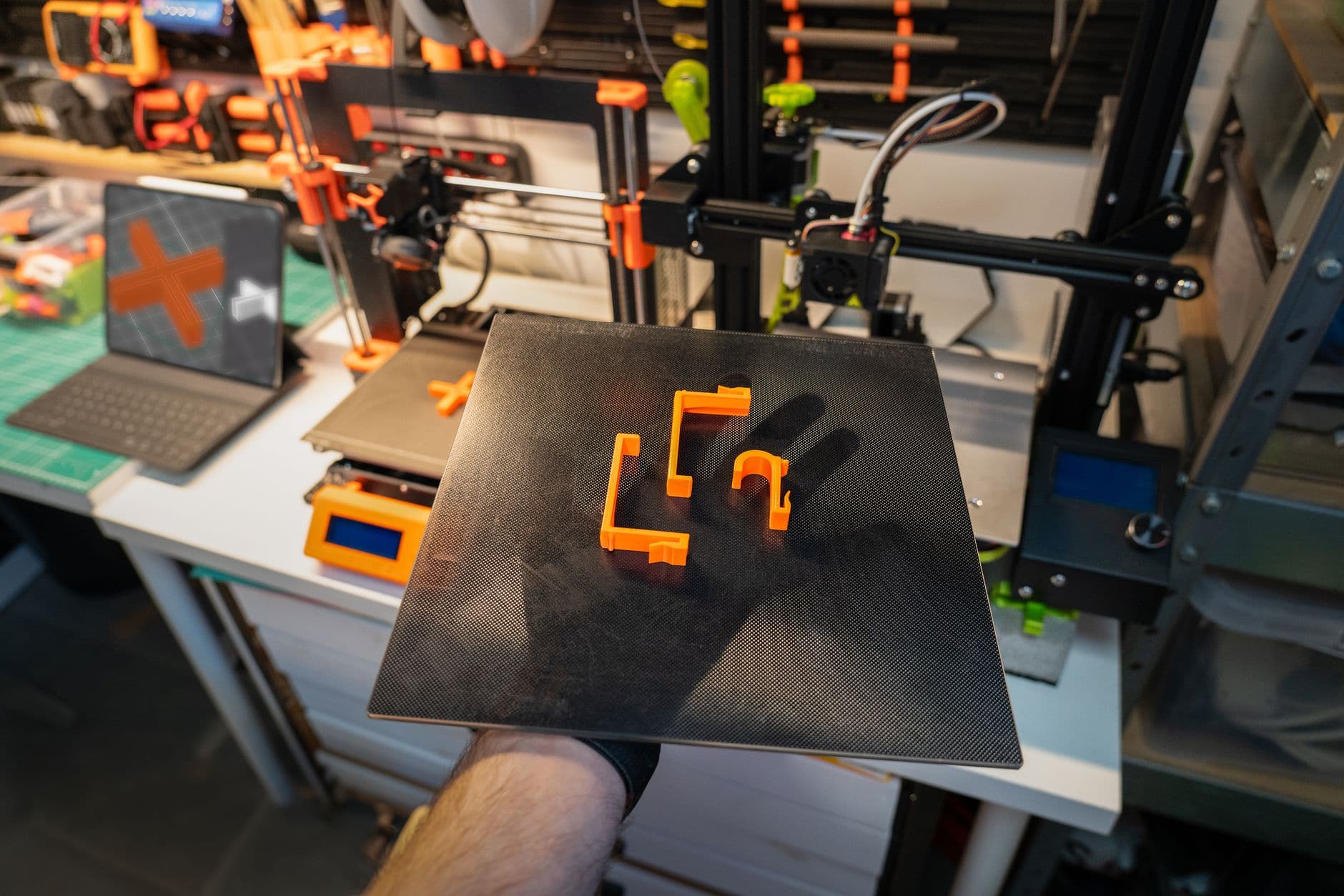
Halfway through the print, the printer beeps and stops.
It just sits there. Waiting for you.
You drop a nut into a little hex hole, hit resume, and it goes right back to work — printing a roof over the nut like it was never there. When it's done, there's a steel nut sealed inside solid plastic. No glue. No hole to see. You couldn't get it out if you tried.
That's the fanciest version of a captive nut in a 3D print. The everyday version is just a hex-shaped pocket the nut drops into so it can't spin while you tighten the bolt.
Both are dead simple once you know three numbers: how big the nut actually is, how much room to leave, and which way the bolt's going to pull.
How big is the nut, actually?
Model the pocket from the real nut, not a guess. Standard hex nuts (ISO 4032):
| Nut | Across flats | Across corners | Thickness | |---|---|---|---| | M2 | 4.0 mm | 4.32 mm | 1.6 mm | | M2.5 | 5.0 mm | 5.45 mm | 2.0 mm | | M3 | 5.5 mm | 6.01 mm | 2.4 mm | | M4 | 7.0 mm | 7.66 mm | 3.2 mm | | M5 | 8.0 mm | 8.79 mm | 4.7 mm | | M6 | 10.0 mm | 11.05 mm | 5.2 mm | | M8 | 13.0 mm | 14.38 mm | 6.8 mm |
Heads up: the older DIN 934 nuts are the same width but thinner from M5 up (M5 is 4.0 mm, M6 is 5.0 mm, M8 is 6.5 mm). If you don't know which kind is in your bin, design the pocket depth for the thicker ISO nut. A nut sitting a little deep is fine. A nut sticking up is not.
And for square nuts (DIN 562, the thin ones Prusa uses): M3 is 5.5 × 1.8 mm, M4 is 7 × 2.2, M5 is 8 × 2.7.
Better yet — measure the nut in your hand with calipers. It takes ten seconds.
How much room to leave
Draw the pocket at the exact nut size and the nut won't go in. Not with a hammer, not with swearing, not at all. Printed holes come out small.
Starting points from people who've done this a lot:
- Width (across flats): +0.2 to +0.4 mm. So an M3 pocket around 5.7–5.9 mm.
- Depth: +0.2 mm or so over the nut thickness.
- Bolt hole: 3.4–3.6 mm for M3, the loose end of the standard clearance holes, since printed holes shrink.
Every printer is a little different, so calibrate once. OrcaSlicer has a built-in Tolerance Test that prints hex holes at 0, 0.05, 0.1, 0.2, 0.3 and 0.4 mm of clearance. Print it, try a nut in each, done. You now know your number forever.
Also: if your round holes keep coming out small, that's normal. Slicers turn circles into polygons that sit inside the line. OrcaSlicer has an X-Y hole compensation setting and Cura has Hole Horizontal Expansion that grow holes without touching anything else.
Bottom pocket vs side slot (one's way stronger)
This is the part that surprised me.
CNC Kitchen pull-tested M3 fasteners in PETG. A nut sitting in a pocket at the bottom — bolt pulling the nut into a solid floor of plastic — held 166 kg. That beat everything else in his test, including heat-set inserts.
A nut in a side slot held 86 kg. The worst result in the test.
Makes sense when you picture it: a side slot is literally a cut-out running through the part, right where the load goes. A bottom pocket has a full, uncut floor behind the nut. (Full numbers in the heat-set inserts post.)
So:
- Max strength? Bottom pocket, bolt pulling the nut into the floor.
- Need to slide the nut in from the side? Side slot — and consider a square nut, which can't spin and doesn't care how long the slot is. (Why square nuts are secretly great.)
One orientation trick for horizontal pockets: put a flat of the hex at the top, not a point. Then the roof of the pocket is a short, flat bridge your printer handles easily, instead of a pointy overhang.
Burying a nut: the pause trick
Now the magic version. You print up to just above the top of the nut pocket, pause, drop the nut in, and resume.
PrusaSlicer (2.2+): slice, go to the preview, drag the layer slider to the first layer that covers the pocket, then right-click the little orange + and choose Insert pause print. The pause happens before that layer prints.
Bambu Studio: in the preview, right-click the + above the layer slider and pick Add Pause. It pauses at the start of that layer. (If Add Pause is greyed out, check that your print sequence isn't set to "By object.")
Cura: Extensions → Post Processing → Modify G-Code → Add a script → Pause at height. Careful — the current version pauses at the end of the layer you pick.
That's the trap. PrusaSlicer and Bambu pause before your layer. Cura pauses after it. Pick the wrong one and the printer drives the nozzle straight into your nut. Hell of a noise.
A few more things that'll save your print:
- The nut has to sit fully below the next layer. Even a hair above, and the nozzle hits it. Make the pocket deep.
- A drop of super glue keeps it seated. Prusa's own guide warns that loose nuts can get picked up by the print head. (Magnets too, if you're burying those.)
- Use a screw as a handle. Thread the nut onto a screw, lower it in, unscrew. Way easier than tweezers.
- Keep the bed hot during the pause so the part stays stuck down.
Printing the roof over the nut
Here's the cool problem. Above the nut you want a round bolt hole — but the layer right above a hex pocket is printing over thin air. A hole in thin air can't print.
Two fixes:
Sequential bridges (a.k.a. "hanging holes"). Instead of trying to print a circle over nothing, you bridge it in steps. First layer: two bridges across the pocket, leaving a slot the width of the bolt hole. Next layer: two more bridges at 90°, leaving a square. Then the round hole prints fine on top. Nophead wrote up the original version back in 2014 and it's been popular ever since.
The good news: OrcaSlicer does this for you. There's a Bridge counterbore holes setting (Advanced mode) with "Partially bridged" and "Sacrificial layer" options.
Sacrificial layer. Just let the printer bridge a solid one-layer skin over the pocket, then poke or drill through it after. Ugly-simple, works every damn time.
What to make with it
Once you've got captive nuts down:
- Knobs — a hex pocket in a printed knob, nut buried inside, and now any M6 bolt has a grippy handle.
- Adjustable feet for wobbly tables, printers, and shop stands.
- Clamps and hold-downs for your bench and router jigs.
- Enclosure panels that bolt on and come off without stripping anything.
And when the part is the fastener — a big printed bolt, a custom knob-bolt, a nut in a weird shape — the Nasty Bastard nut and bolt generator builds matched pairs with the printed clearance built in, in hex, square, or a few shapes you won't find at the hardware store. If you've never printed threads, start here.
So what's getting a nut buried inside it first?
Frequently asked questions
- How big should a captive nut pocket be for M3?
- An ISO 4032 M3 nut is 5.5 mm across the flats and 2.4 mm thick. Make the pocket about 0.2–0.4 mm wider across the flats (5.7–5.9 mm) and about 0.2 mm deeper, then confirm with a tolerance test print. Use a 3.4–3.6 mm hole for the M3 bolt.
- Is a side slot or a bottom pocket stronger for a captive nut?
- A bottom pocket. In CNC Kitchen's M3 PETG test, a nut in a bottom pocket held 166 kg in pull-out while a nut in a side slot held 86 kg, because the slot cuts through the part right where the load goes.
- How do I pause a 3D print to insert a nut?
- In PrusaSlicer, right-click the + on the layer slider and insert a pause print (it pauses before that layer). In Bambu Studio, right-click the + and choose Add Pause (it pauses at the start of the layer). In Cura, use the Pause at height post-processing script, which pauses at the end of the chosen layer. The nut must sit fully below the next layer.
- How do I print a bolt hole over a nut pocket without supports?
- Use sequential bridging (hanging holes): bridge the pocket in two directions over successive layers to leave a slot, then a square, then let the round hole print on top. OrcaSlicer automates this with its Bridge counterbore holes setting. Or print a one-layer sacrificial skin and drill through it.